How to Take Orders on Instagram DMs for Small Shops
Turn Instagram enquiries into orders your team can fulfil with clear order summaries, payment checks and one shared record.
To take orders on Instagram DMs, confirm the exact item and delivery option in the chat, send the customer to your checkout or payment page, and use one order record to track what happens next. Give every order a reference. Verify payment in the system that received it before releasing the order for packing.
This workflow suits a small shop where one person answers DMs and another packs orders. It also works if both jobs are yours and you switch between them during the day. The example below follows a fictional shop selling embroidered tote bags.
Identify the item before you confirm availability
“Can I get this in green?” might refer to the bag in a screenshot, a display sample or an older version of the same design. Start by naming the product and the variant you think they mean. Ask only for the detail you need to check availability or quote the order.
“Is that the zip-top tote from the reel? It comes in sage and forest green. Which shade would you like, and would you like initials embroidered on it?”
Check the exact variant in your stock or production records. If delivery changes the price or the options, ask for the destination country or postcode first. Collect the full address at checkout when you can. See the guide to answering pre-sales product questions for ways to help shoppers choose before they place an order.
Send one order summary the shopper can check
Put the agreed details together in a single message. Include the product, variant, quantity, personalisation if applicable, delivery method and total with currency. For a custom order, spell back the text and state when work is expected to start. Describe dispatch and estimated arrival separately if you can verify both.
“Please check these details for order draft IG-184. One sage zip-top tote with ‘MAY’ in white thread. Tote and embroidery £28, standard UK delivery £4, total £32. We expect to dispatch within three working days of receiving payment. Is the spelling and colour right?”
If the customer asks to change “MAY” to “MAE”, send a revised summary and mark the earlier version as superseded in your order record. Update the checkout or payment request too if it contains details that have changed. That matters even when the total stays the same. The customer and the person preparing the order both need to see which version was approved.
Send the right checkout and verify the payment
For a standard item, point the customer to the matching product page or checkout and say which option to select if the page offers several. For custom work, use a checkout or invoice workflow that lets you associate the payment with the agreed details. Check the destination, currency and total before sending. Keep card details out of DMs and direct the buyer to your normal payment page.
A buyer saying “paid” is a reason to look up the transaction. Check the reference, amount and status in your shop or payment dashboard. If the payment is missing or the amount differs, let the buyer know what you’re checking and keep the order out of the packing queue. If they think they were charged, verify the first attempt before asking them to try again.
“Thanks. I’m checking payment for IG-184. I’ll confirm the order as soon as I can match the payment to it. If your bank already shows a charge, please wait for my update before paying again.”
Keep one record the packing team can trust
Use the order record in your shop if checkout has already created one. If you need a manual tracker, use an order reference and keep the product details, payment status, fulfilment owner and next action together. Record a link or reference to the relevant conversation where your team can access it. Avoid copying full payment or address details into casual shift notes.
- Awaiting payment. The buyer agreed to the details. Check payment before packing or starting custom work.
- Ready to fulfil. Payment is verified and the final item details are approved. Assign a named owner to prepare the order.
- On hold. A change, stock issue or duplicate needs checking. Add the decision needed and who will make it.
- Dispatched or collected. Record what happened and share the appropriate update with the buyer.
If a buyer contacts you on another channel, ask for their order reference and match it against your record before discussing details. Similar names or a familiar profile photo are weak evidence. If you find two checkout records that may represent the same purchase, check both payment and fulfilment status, then clarify the customer’s intent before cancelling or shipping either. Update the support shift handover with the owner and next action for any unresolved case.
Give the buyer a reference and a next update
Once the order is confirmed, send its reference and explain what the customer should expect. If a delivery change comes in, check whether the label has already been printed or the parcel handed over. Tell the buyer when you’ve confirmed what can be changed. Send the updated details to the person fulfilling the order through the same record they use to pack.
“Payment confirmed for IG-184. We’re preparing one sage tote with ‘MAE’ in white thread. We expect to dispatch within three working days. We’ll send tracking when it’s available.”
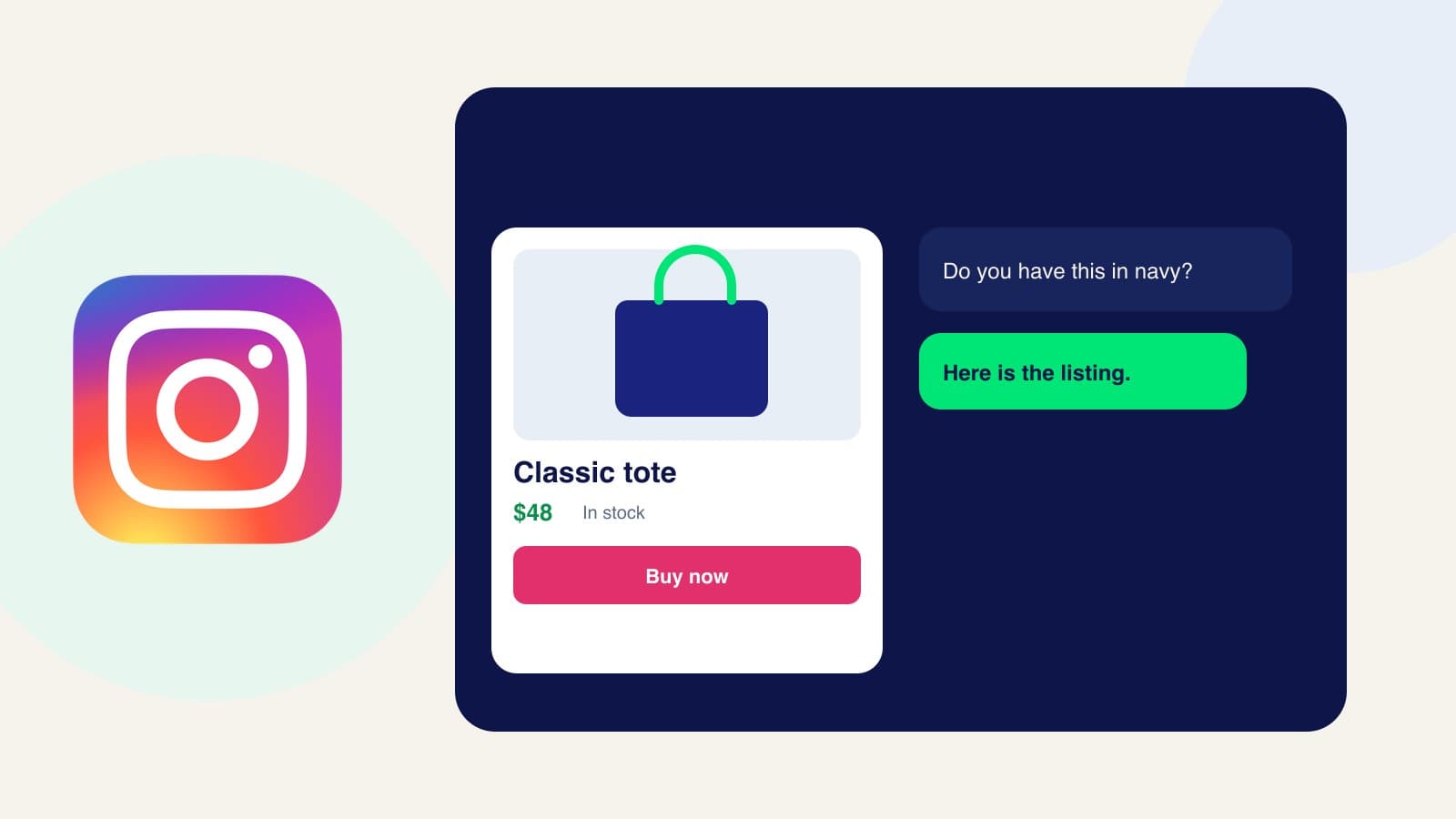
For routine enquiries about products, Zorachat can answer questions and share product cards that point shoppers to your website for checkout. If your team already has a process for confirming payment and preparing orders, see how to add Zorachat product cards to Instagram DMs so shoppers can find the right product page from the conversation.