How to Show a Product Card on Facebook Messenger
How to show a product card on Facebook Messenger so shoppers see the photo and price in the thread and check out on your site.
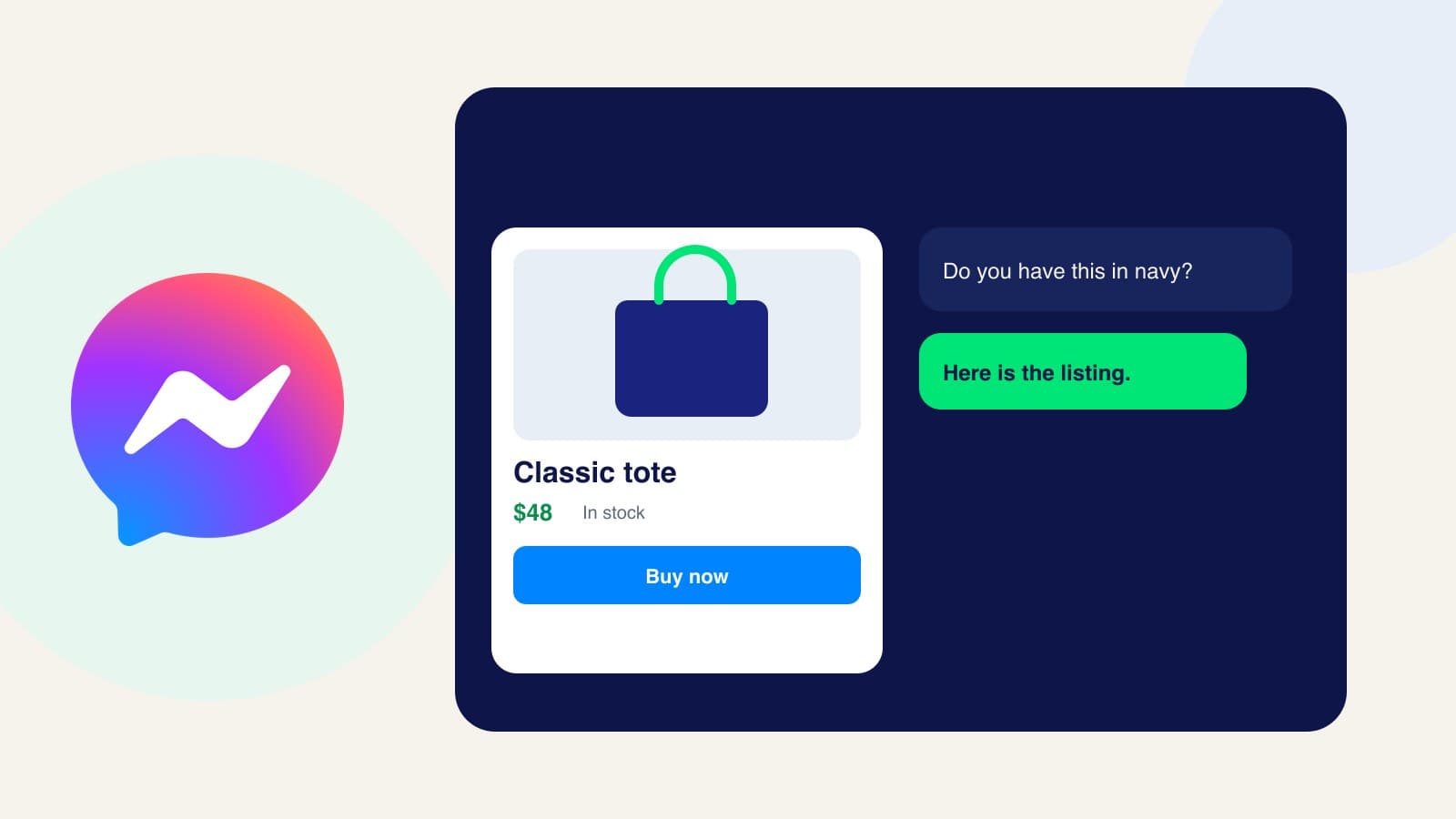
A Facebook Messenger product card puts the listing inside the thread: photo, name, price, and a way to continue to your store. Local customers already ask “is it in today?” in Messenger. The card answers with the product, not a paragraph they have to trust. Here is how to show it.
1. Create the product once
Add the title, description, price, photo, and the checkout URL on your website. That is the same product record WhatsApp and Instagram use. If you already followed how to show a product card on WhatsApp, do not create a Messenger-only copy.
2. Connect the Meta catalog
Messenger renders the card from Meta Commerce Manager. Connect that catalog in Zorachat and wait until the product has synced. One catalog feeds WhatsApp, Instagram, and Facebook. Details are on Meta catalog sync.
3. Connect the Facebook Page customers message
Connect Facebook Messenger on the Page where those chats already arrive. The assistant that knows the catalog is the same assistant on your site and on WhatsApp. Hours and prices should match, because there is one source.
4. Send the card from the conversation
When someone asks for an item you sell, the assistant replies with the product card in Messenger. On this channel the card can offer Buy now. Tapping it opens your website checkout. Payment is collected there, with your processor. You remain the merchant of record.
5. Read the thread in Live Agent
You do not have to open Facebook to see that a card was sent. The Messenger thread sits in the unified inbox with your other channels. Join the chat if the shopper wants a custom price or a change the card cannot make.
Frequently asked questions
Can the customer pay inside Messenger?
They complete payment on your website. The card is the listing in the thread. The checkout URL on the product is the page that charges them.
Why would the card show on WhatsApp and not in Messenger?
The catalog can be connected while Messenger itself is not. Confirm the Page is connected, the product synced, and the test message names a product that is actually in the catalog.
Use the same card on the Page you already have
Connect Messenger after the product looks right on one other channel, then ask for it in a test thread. Support replies for that Page are covered in how to use Facebook Messenger for customer support.