How to Show a Product Card on WhatsApp
How to show a product card on WhatsApp with your photo, price, and checkout link, from one catalog the assistant can send in the chat.
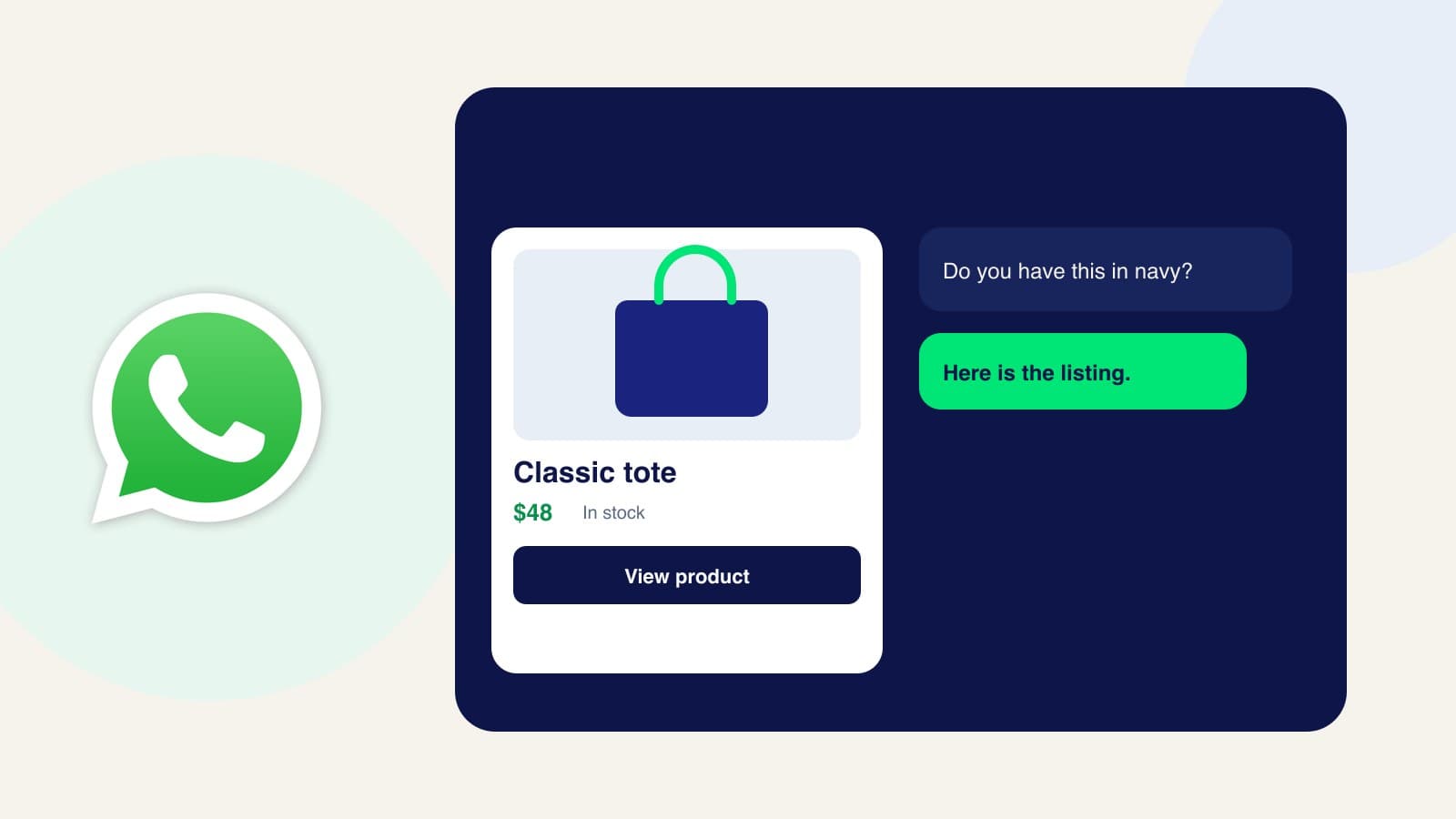
A WhatsApp product card is the native listing your customer can tap: your photo, name, price, and availability, inside the WhatsApp chat. You do not paste a new picture every time someone asks “do you have this in navy?” Zorachat sends the card from one catalog. Here is how to show it.
1. Add the product with the fields the card needs
Create the product in Zorachat with a title, a description, a price, and a photo. The photo is required. Also set the checkout URL on your own website. That URL is where the shopper pays. WhatsApp can show the product. Your store takes the payment.
2. Sync it to Meta Commerce Manager
WhatsApp reads product cards from a Meta Commerce Manager catalog. In Zorachat’s omnichannel settings, connect that catalog once. The same catalog also powers Instagram and Facebook, so you do not build a second list for those apps. Wait until the product shows as synced to Meta. If sync fails, fix the photo or the missing fields and retry. The setup is covered on Meta catalog sync.
3. Attach the catalog to WhatsApp Business
Connect the WhatsApp Business account customers already message, and confirm the WhatsApp catalog is attached. A product that exists only inside Zorachat can still be discussed. The native card appears after the catalog connection is live.
4. Let the assistant send the card when someone is ready to buy
Ask a real question on WhatsApp, such as the color or the size you sell. The assistant should answer from the catalog and send the product card in that thread. Sales assistance picks the item that fits the question instead of dropping a link with no context.
5. Send payment to your checkout
The shopper taps the card and lands on the checkout URL you saved. On WhatsApp they can also place the order in the chat, then pay through your payment link, your gateway, or a supported WhatsApp payment method in their region. Stripe, Paystack, PayPal, Razorpay, or whichever processor you already use settles the money to you. Zorachat does not hold the sale.
Frequently asked questions
Do I need a separate WhatsApp catalog if I already sell on Instagram?
One connected Commerce Manager catalog supplies the card on WhatsApp, Instagram, and Facebook. See how to show a product card in an Instagram DM.
What if the card never appears?
Check three things: the product has a photo and a price, Meta sync succeeded, and the WhatsApp catalog shows as attached. Then ask for that exact product again in a new test chat.
Show the card where the question already is
Add the product, connect the catalog, and test one WhatsApp thread before you turn the channel loose. The wider selling setup is in how to sell on WhatsApp, Instagram, and Facebook.