How to Show a Product Card on Your Chatbot Widget
How to show a product card on your chatbot widget so visitors see the photo, price, and a button to view or buy on your site.
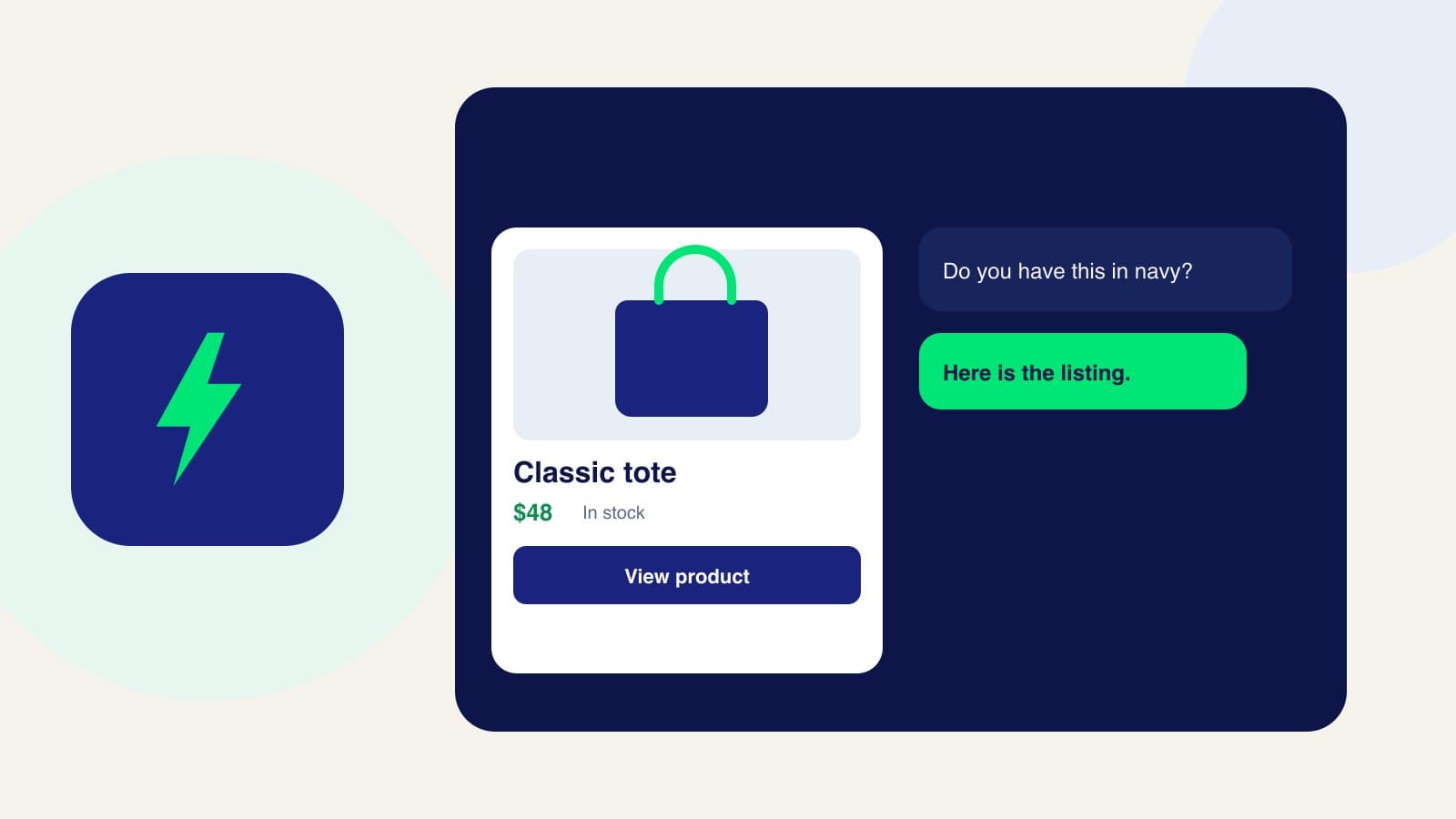
A chatbot widget product card is the listing inside the chat on your website: photo, title, price, and a button to open the product. The visitor is already on your store. The card keeps them in the conversation until they are ready to view it or buy it. Here is how to show it.
1. Add the product the widget should recommend
Create it in Zorachat with a title, description, price, and photo. Set the product URL or checkout URL on your site. The widget reads this catalog directly. You do not need a Meta catalog connection for the card to appear on your website. That connection is what turns the same product into a native card on WhatsApp, Instagram, and Messenger.
2. Put the widget on the site
Install the chat widget on the pages where people shop. On WordPress, use how to add an AI chatbot to WordPress. Confirm the widget opens and that the assistant can answer a plain product question before you expect a card.
3. Ask for the item in the widget
A question such as “do you have a navy tote that fits a laptop?” should get an answer and then the product card. The card shows the photo, the name, the price, and a button. For a normal listing that button is View product. On WooCommerce, a simple in-stock product can offer Add to Cart, and a product with options can offer Choose options, plus View.
4. Show one card, or a short row
One clear match should be one card. If several products fit, the widget can show them side by side so the visitor can scroll. Sales assistance should still pick from what you sell, not attach your entire catalog to every hello.
5. Keep the website card and the WhatsApp card on the same product
When you are ready for social channels, sync that product to Meta and follow how to show a product card on WhatsApp. The website widget and WhatsApp should describe the same item. The handoff between those two doors is in how to use the same assistant on your website and WhatsApp.
Frequently asked questions
Where does the visitor pay?
On your website. The card opens the product or checkout URL you saved. Your payment processor charges them. Zorachat does not take the payment.
Why is the card missing a photo?
The product needs an image in the catalog. Upload a JPG, PNG, GIF, or WebP, save the product, and ask the widget again.
Test the card on a product page
Open the widget, ask for one product by name, and click through to the listing. When that path is right, connect WhatsApp or Instagram and send the same product there.