How to Add an AI Chatbot to WordPress
Install an AI chatbot on WordPress, train it on your content, configure human handoff, customize the widget, test, and launch.
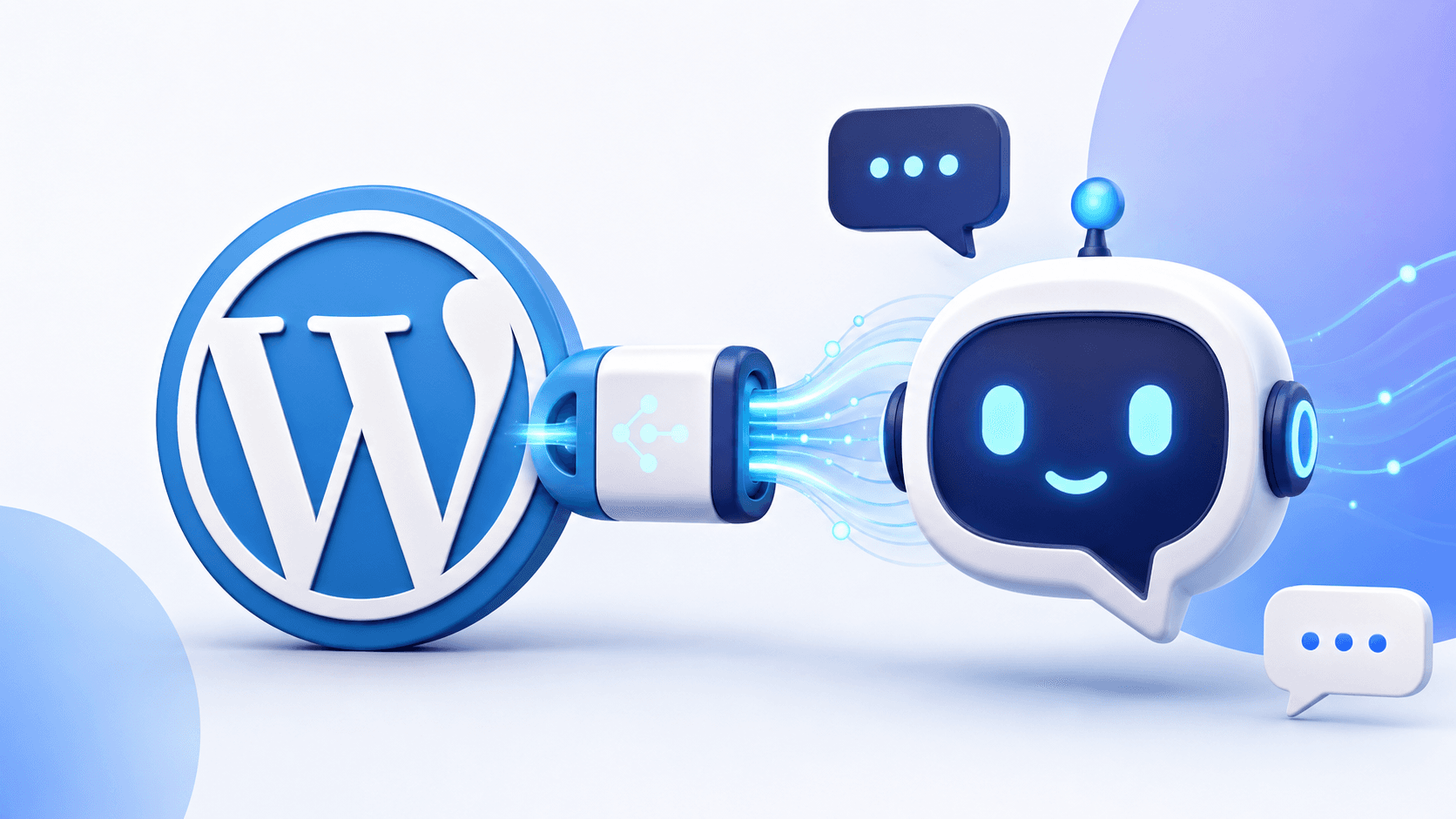
Adding an AI chatbot to WordPress should involve more than activating a widget. The assistant needs accurate content, a clear role, a safe route to a person, and launch testing. This guide uses the Zorachat plugin workflow, but the evaluation principles apply to any WordPress chatbot.
Before installation
- Identify the questions the assistant should answer.
- Review product pages, FAQs, policies, and documentation for contradictions.
- Decide which conversations must reach a person.
- Choose the contact details you genuinely need to collect.
- Prepare a short test set from real visitor questions.
1. Install and connect the plugin
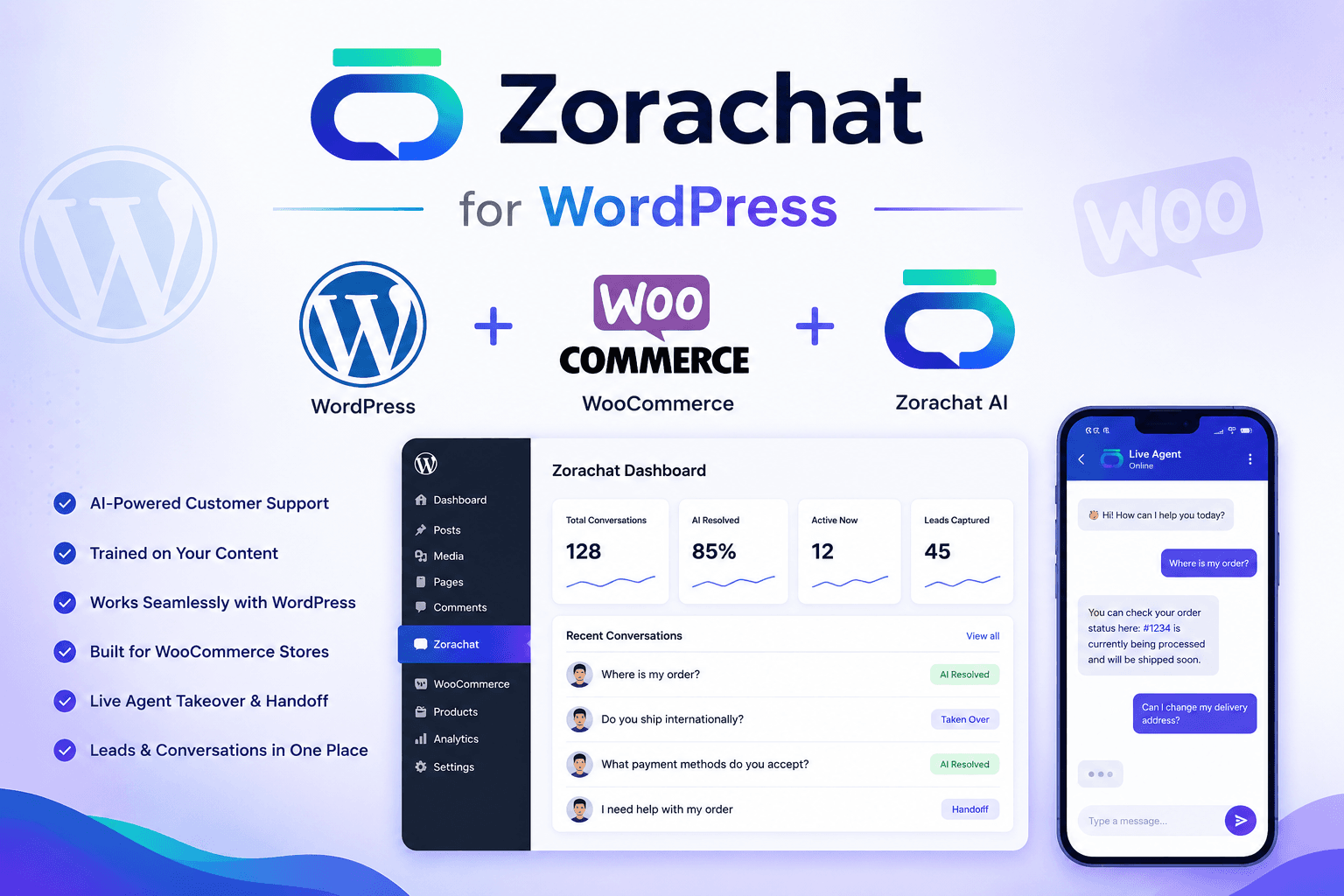
Open the WordPress dashboard, go to Plugins, add the Zorachat plugin, activate it, and connect your Zorachat account. The current installation path and WooCommerce capabilities are described on the Zorachat WordPress page.
2. Train the assistant on approved content
Add the pages, posts, FAQs, documentation, and other sources that contain the answers visitors need. If you run WooCommerce, include accurate product and policy content. Use the process in training an AI chatbot on website content to clean and test the source material.
3. Match the widget to your site
Configure the greeting, brand colors, assistant identity, launcher position, and tone. Zorachat’s widget-customization feature lets you make the experience feel native without changing the assistant’s knowledge.
4. Configure human handoff
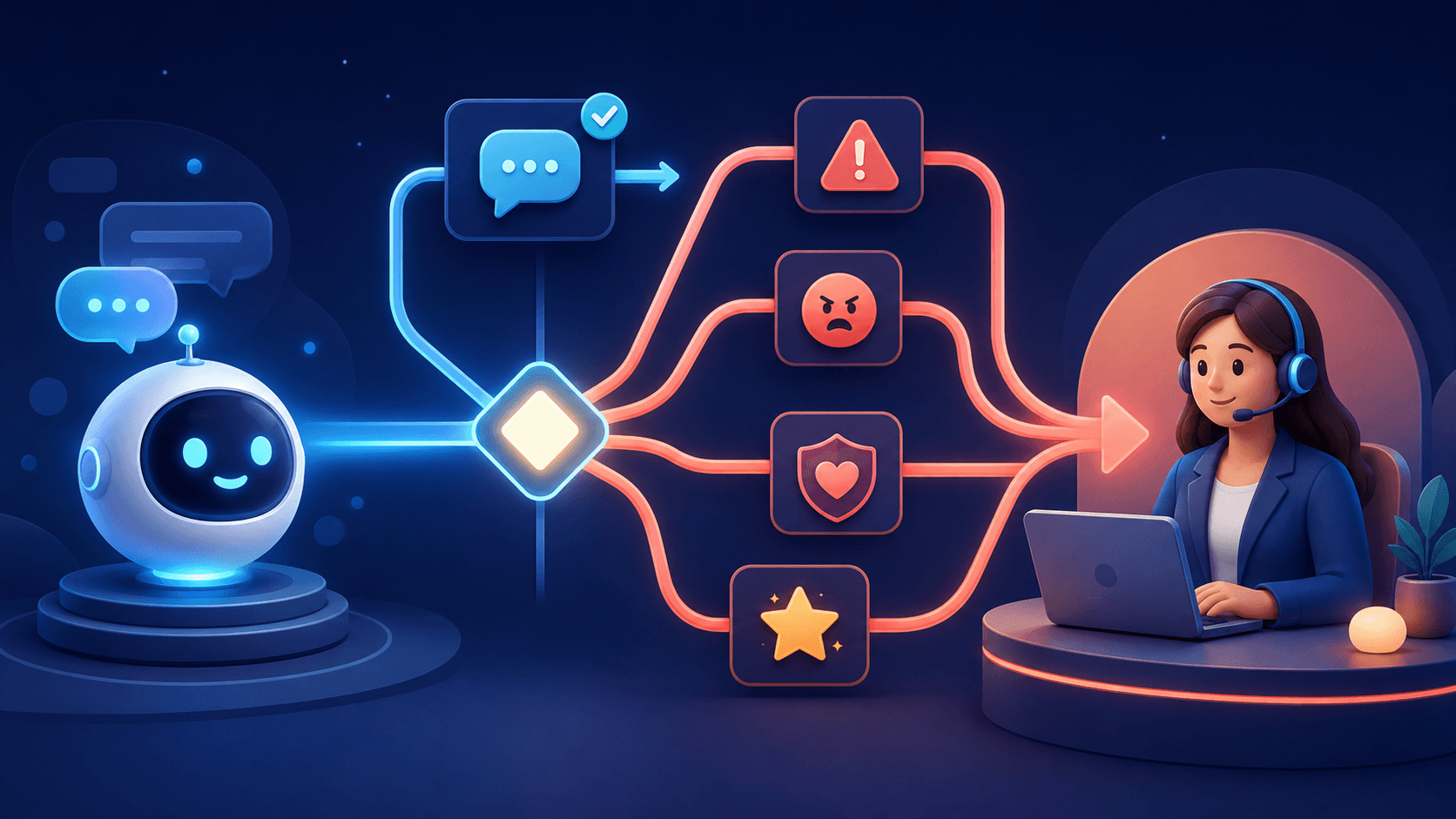
Decide when conversations should move to the Live Agent inbox on web, iOS, and Android. Test explicit requests, low-confidence questions, frustration, and sales intent. Confirm the human receives the full transcript through context-preserving handoff.
5. Test on desktop and mobile
- Ask common questions in several phrasings.
- Try a question the knowledge base does not answer.
- Upload an image if your workflow uses image-aware chat.
- Trigger handoff and verify notifications.
- Check keyboard use, contrast, layout, and page performance.
- Confirm lead details arrive in the correct place.
6. Launch and review real conversations
Start with a clear owner and a review schedule. Watch early conversations through live monitoring, correct knowledge gaps, and refine escalation rules. Do not publish and forget the assistant.
Frequently asked questions
Do I need to edit WordPress code?
The Zorachat plugin is designed for a no-code installation path. Advanced teams can still coordinate styling and analytics with their theme or development workflow.
Can the chatbot work with WooCommerce?
Yes. The Zorachat WordPress experience includes WooCommerce-oriented product and shopping support. Test the specific store actions and policies you intend to expose.
Treat installation as the beginning
A plugin gets the widget onto the site; training and operating discipline make it useful. Explore Zorachat for WordPress or deploy for free.